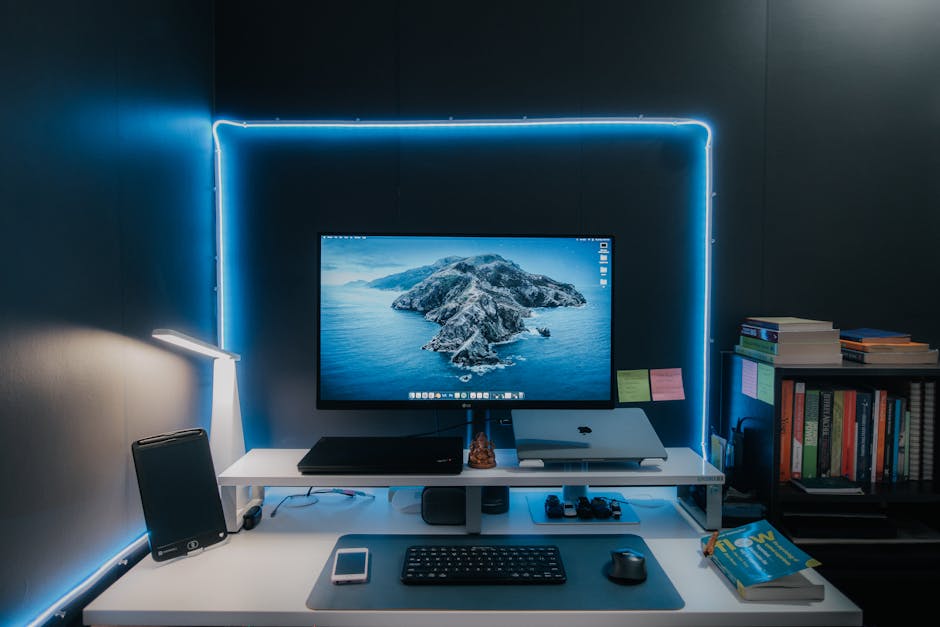
If you’re reading this while unconsciously adjusting your position in an uncomfortable chair or stretching your aching lower back, you’re not alone. I learned this the hard way after my back injury in 2012, and the statistics back it up: over 60% of remote workers report experiencing back pain that started or worsened after transitioning to working from home.
The sudden shift to remote work caught millions off guard, forcing us to transform kitchen tables, bedroom corners, and makeshift spaces into full-time offices. While we adapted quickly to video calls and digital collaboration, many of us overlooked a crucial element: creating a work from home desk setup for back pain prevention that actually supports our bodies through long workdays.
The good news? You don’t need to spend thousands of dollars or completely renovate your space to build an ergonomic home office that protects your spine. I’ve spent years reading studies and digging into ergonomic research after my disc degeneration diagnosis. With the right knowledge and a strategic approach, you can transform any workspace into a back-friendly environment that keeps you comfortable and productive.
Key Points to Remember
Proper monitor height and distance are critical—your screen should be at eye level and 20-26 inches away to prevent neck strain and forward head posture
Chair height should allow your feet to rest flat on the floor with thighs parallel to the ground and knees at 90-degree angles
Budget-friendly solutions like laptop stands, external keyboards, and lumbar support cushions can dramatically improve ergonomics without breaking the bank
The 20-20-20 rule (every 20 minutes, look at something 20 feet away for 20 seconds) combined with regular movement breaks prevents muscle fatigue and eye strain
Proper lighting reduces eye strain and prevents compensatory postures that lead to neck and shoulder tension
Small adjustments to your existing setup often provide immediate relief—you don’t always need new equipment to see improvements
Why Home Offices Are Wrecking Our Backs
The transition to remote work has created an unexpected health crisis. Physical therapists and chiropractors report a significant increase in patients complaining of lower back pain, neck stiffness, and shoulder tension. All of it directly linked to poor home office ergonomics.
Unlike traditional office environments where employers invest in ergonomic furniture and workplace assessments, home offices are often afterthoughts. We grab whatever chair is available, prop laptops on coffee tables, and spend eight-plus hours hunched over inadequate setups that would make any ergonomics expert cringe.
The most common culprits behind home office back pain include improper chair height, monitors positioned too low, inadequate lumbar support, and static postures maintained for hours without breaks. These factors create a perfect storm of muscle imbalances, spinal compression, and postural dysfunction that manifests as persistent discomfort.
What Poor Ergonomics Actually Costs You
Beyond immediate discomfort, poor ergonomics carry long-term consequences. Chronic back pain can lead to decreased productivity, increased sick days, and expensive medical treatments. Many remote workers find themselves caught in a cycle where pain affects their work performance, creating additional stress that further compounds physical tension.
Research consistently shows that employees with ergonomic workstations report higher job satisfaction, increased focus, and better overall well-being. When you invest in creating a proper work from home desk setup for back pain prevention, you’re investing in your long-term health and career success.
Essential Elements of an Ergonomic Home Office
Building an effective ergonomic workspace starts with understanding the fundamental principles that keep your spine healthy and your muscles relaxed during long work sessions. Every element of your setup (from chair height to monitor placement) plays a crucial role in preventing back pain.
The Foundation: Your Chair and Posture
Your chair serves as the foundation of your entire workspace, directly impacting spinal alignment and muscle tension throughout your workday. The ideal chair supports the natural curves of your spine while allowing for slight movement and position changes.
Proper chair adjustment begins with seat height. Your feet should rest comfortably flat on the floor with your thighs parallel to the ground. If your chair is too high, your legs will dangle, creating pressure on the backs of your thighs and reducing blood circulation. If it’s too low, your knees will be higher than your hips, tilting your pelvis backward and flattening your lower back’s natural curve.
Lumbar support is equally critical. Your chair should maintain the natural inward curve of your lower back. If your current chair lacks adequate lumbar support, a simple cushion or rolled towel placed behind your lower back can make a dramatic difference in comfort and spinal alignment.
Monitor Positioning for Neck and Shoulder Health
Improper monitor placement is one of the leading causes of neck pain and forward head posture among remote workers. Your screen should be positioned so the top of the monitor is at or slightly below eye level, allowing you to look straight ahead or slightly downward without tilting your head.
Distance matters just as much as height. Position your monitor 20 to 26 inches away from your eyes—roughly an arm’s length. This distance reduces eye strain while allowing you to maintain proper posture without leaning forward or backward to see clearly.
For laptop users, this often means investing in an external monitor or laptop stand combined with a separate keyboard and mouse. Working directly on a laptop creates an impossible ergonomic compromise: you can either position the screen at the right height or the keyboard at the right level, but not both at the same time.
Budget-Friendly Solutions for Every Home Office
Creating an effective work from home desk setup for back pain doesn’t require a massive investment. I’ve spent time and money trying different solutions over the years, but strategic, budget-conscious choices can deliver significant improvements in comfort and ergonomics without straining your finances.
Under $50 Solutions
Start with these affordable essentials that provide immediate relief and improved ergonomics. A lumbar support cushion can transform any chair into a more back-friendly option, providing the lower back support that prevents slouching and reduces spinal pressure.
Laptop stands made from simple materials like books or adjustable portable stands can elevate your screen to proper eye level. When combined with an external keyboard and mouse, this setup eliminates the need to choose between proper screen height and comfortable typing position.
A document holder positioned at eye level beside your monitor reduces neck strain from repeatedly looking down at papers. Even a simple clipboard propped against a stack of books can serve this purpose effectively.
Mid-Range Investments ($50-$200)
In this price range, you can make more substantial improvements to your workspace ergonomics. An adjustable laptop stand with built-in cooling provides flexibility and helps prevent overheating during long work sessions.
Ergonomic seat cushions with memory foam offer superior comfort and pressure distribution compared to basic lumbar support pillows. These cushions often include features like cooling gel layers or contoured designs that specifically address tailbone pressure and hip alignment.
Under-desk footrests help workers who can’t adjust their chair height appropriately for their desk. A good footrest maintains proper leg positioning and reduces pressure on the backs of your thighs while supporting healthy circulation.
Step-by-Step Setup Guide
Follow this systematic approach to optimize your workspace for maximum comfort and back pain prevention. Each step builds upon the previous one, creating a comprehensive ergonomic environment.
Step 1: Adjust Your Chair Height – Set your chair so your feet rest flat on the floor with thighs parallel to the ground. Your knees should form 90-degree angles.
Step 2: Position Lumbar Support – Place a cushion or adjust your chair’s lumbar support to maintain your lower back’s natural inward curve.
Step 3: Set Monitor Height – Position your screen so the top is at or slightly below eye level. Use books, a monitor stand, or laptop riser as needed.
Step 4: Optimize Monitor Distance – Place your screen 20-26 inches away from your eyes (approximately arm’s length).
Step 5: Arrange Keyboard and Mouse – Position these tools so your elbows hang naturally at your sides with forearms parallel to the floor.
Step 6: Add Task Lighting – Ensure adequate lighting that doesn’t create glare on your screen or force you to lean forward to see clearly.
Step 7: Test and Adjust – Spend a few hours working in your new setup and make minor adjustments as needed for optimal comfort.
Movement and Break Strategies
Even the most perfectly designed work from home desk setup for back pain becomes problematic if you remain stationary for hours. Your body is designed for movement, and prolonged static postures (regardless of how ergonomically correct) can lead to muscle fatigue and discomfort.
I implement the 20-20-20 rule as my foundation: every 20 minutes, look at something 20 feet away for at least 20 seconds. This simple practice reduces eye strain and naturally encourages slight posture changes that help prevent muscle stiffness.
I also schedule longer movement breaks every hour. Stand up, walk around your space, and perform simple stretches that target common problem areas. Focus on hip flexor stretches to counteract prolonged sitting, shoulder blade squeezes to combat forward head posture, and gentle spinal twists to maintain mobility in your lower back.
Micro-Movements Throughout the Day
I incorporate subtle movements while I work to keep my muscles active and blood flowing. Ankle circles under my desk, shoulder rolls between tasks, and gentle neck stretches during phone calls all contribute to reducing muscle tension and preventing stiffness.
Consider alternating between sitting and standing if possible. While standing desks aren’t necessary for everyone, having the option to change positions throughout the day can significantly reduce the cumulative stress on your spine from prolonged sitting.
Common Setup Mistakes I See
Many remote workers unknowingly sabotage their ergonomic efforts through common setup errors that seem minor but have significant impacts on comfort and spinal health. I’ve made most of these mistakes myself while figuring out what actually works. Recognizing and correcting these mistakes can provide immediate relief and prevent long-term problems.
Monitor placement errors are among the most frequent issues. Screens positioned too low force you to look downward, creating neck strain and forward head posture. Monitors placed off to one side cause repetitive neck rotation and asymmetrical muscle tension. Always center your primary monitor directly in front of you at the appropriate height.
Keyboard and mouse positioning mistakes create upper extremity problems that often manifest as neck and shoulder pain. Placing these tools too high forces you to elevate your shoulders, creating tension. Positioning them too far away encourages reaching and forward head posture.
Lighting and Environmental Factors
Poor lighting forces compensatory postures that contribute to back pain. Working in dim conditions causes you to lean forward and squint, while excessive glare leads to awkward head positioning to avoid screen reflection. Position your workspace perpendicular to windows when possible and use adjustable task lighting to supplement natural light.
Temperature and air quality also impact your comfort and posture. Cold environments cause muscle tension and encourage hunching, while overly warm spaces can lead to slouching and lethargy. Maintain a comfortable temperature and ensure adequate ventilation in your workspace.
Laptop-Specific Ergonomic Solutions
Laptop computers present unique ergonomic challenges that require specific solutions. The integrated design that makes laptops portable also makes them inherently non-ergonomic for extended use, as you cannot simultaneously position both the screen and keyboard at optimal heights.
The most effective approach involves separating the laptop’s components functionally. Use a laptop stand or external monitor to achieve proper screen height, then connect an external keyboard and mouse to maintain comfortable hand and arm positioning. This setup provides the flexibility of laptop computing with the ergonomic benefits of a desktop configuration.
For situations where external peripherals aren’t practical, focus on the lesser of two evils approach. Prioritize proper screen height over keyboard position, as neck strain typically develops more quickly and severely than wrist discomfort. Take frequent breaks to stretch and change positions when using a laptop in its integrated configuration.
Frequently Asked Questions
Can I create an ergonomic home office setup without spending hundreds of dollars?
Absolutely. Many effective solutions cost under $50, including lumbar support cushions, laptop stands made from books, and document holders. Simple adjustments like using a rolled towel for back support or propping your laptop on books while using an external keyboard can provide immediate relief. Strategic, budget-conscious choices often deliver significant improvements in comfort without major financial investment.
Why does my back hurt more when working from home compared to the office?
Home offices typically lack the ergonomic furniture and workplace assessments found in traditional offices. Common culprits include improper chair height, monitors positioned too low, inadequate lumbar support, and maintaining static postures for hours. Unlike office environments where employers invest in ergonomic setups, home workspaces are often makeshift arrangements using kitchen tables and whatever chair is available.
How far should my computer monitor be from my eyes to prevent back and neck strain?
Position your monitor 20 to 26 inches away from your eyes, roughly an arm’s length. The top of the screen should be at or slightly below eye level, allowing you to look straight ahead or slightly downward without tilting your head. This distance reduces eye strain while helping you maintain proper posture without leaning forward or backward.
What’s the biggest mistake people make when setting up a home office workspace?
Working directly on a laptop creates an impossible ergonomic compromise—you can either position the screen at the right height or the keyboard at the right level, but not both simultaneously. This forces users into poor postures that strain the neck, shoulders, and back. The solution is using an external monitor or laptop stand combined with a separate keyboard and mouse.
How often should I take breaks to prevent back pain while working from home?
Follow the 20-20-20 rule: every 20 minutes, look at something 20 feet away for 20 seconds, combined with regular movement breaks. Static postures maintained for hours without breaks are a major contributor to muscle fatigue and back pain. Regular movement prevents muscle imbalances and spinal compression that develop from prolonged sitting.
What I’ve Learned About Home Office Ergonomics
Creating an effective work from home desk setup for back pain doesn’t require perfection or expensive equipment. It requires understanding the fundamental principles of ergonomics and applying them consistently to your unique workspace. Small, strategic adjustments often provide immediate relief and long-term benefits for your spinal health and overall well-being.
The best ergonomic setup is one that encourages movement and position changes throughout your workday. No single posture, regardless of how well-designed, should be maintained for hours without breaks. I learned this through years of dealing with disc degeneration after hurting my back in 2012 lifting concrete during a backyard remodel. Combine proper equipment positioning with regular movement breaks and conscious posture awareness to create a sustainable, comfortable work environment.
Your back pain doesn’t have to be an inevitable consequence of working from home. With the knowledge and strategies I’ve outlined here, you can transform your workspace into a supportive environment that enhances both your productivity and your physical health. Start by implementing one or two changes today—adjust your monitor height and add lumbar support—then gradually incorporate additional improvements as your comfort and needs evolve.
Products Mentioned in This Article
As an Amazon Associate, I earn from qualifying purchases. These links help support the site at no extra cost to you.